I spend a lot of time hopping around folders in Explorer, especially when I’m bouncing between demos, samples, blog code, and whatever random side quest has captured my attention that day. And since I’ve also been using Copilot CLI as my primary interface to Copilot, I had one of those wonderfully lazy thoughts: why am I manually opening Windows Terminal and navigating to the folder when right-click menus exist?
So naturally, instead of saving time immediately, I spent time automating the thing that would save me time later. As is tradition.
The goal
What I wanted was pretty simple:
- Right-click a folder in Explorer
- See a
Copilotsubmenu - Choose between my normal GitHub Copilot terminal profile and my YOLO one
- Have Windows Terminal open directly in that folder
The commands wired up to the context menu are:
| |
That -d argument is the important bit, because it tells Windows Terminal which folder to start in. So instead of opening a terminal somewhere generic and then /cd-ing around like it’s 2009, it just lands exactly where I clicked.
Explorer menus are just registry entries
The nice thing about classic Explorer context menu customisation is that it’s mostly just registry keys. You can create a menu for when a folder is selected, and another for when you right-click the background inside a folder.
That means I could create a Copilot submenu with two children:
GitHub Copilot (yolo)(which runscopilot --allow-allin the terminal)GitHub Copilot
The commands behind those entries are just wt.exe invocations with the selected path passed in.
For a selected folder, Explorer passes %1. For the background of an open folder, it passes %V. That’s the little detail that makes the same idea work in both places.
The important bit: what those profiles actually launch
The context menu itself doesn’t launch copilot directly. It launches named Windows Terminal profiles, which is honestly the better setup because it means I can keep all the styling and command configuration in one place.
Here are the two profiles from my Windows Terminal settings.json:
| |
| |
So the difference between the two is exactly what you’d expect:
- the standard profile runs
copilot - the YOLO profile runs
copilot --allow-all
Everything else is just terminal cosmetics (hey, I like my custom background and icon!).
Wiring it into Explorer
The registry file creates a Copilot submenu in two places:
HKEY_CLASSES_ROOT\Directory\shell\CopilotHKEY_CLASSES_ROOT\Directory\Background\shell\Copilot
From there, each submenu item points to one of the Windows Terminal profiles:
| |
There’s a matching set of keys under Directory\\Background\\shell\\Copilot that use %V instead of %1, but otherwise it’s the same idea.
A tiny icon gotcha
One slightly annoying detail: Explorer context menu icons really want an .ico file, not a .png. Windows Terminal is perfectly happy to use the PNG for the profile icon inside Terminal, but the registry-backed Explorer menu behaves much more reliably with an ICO.
So yes, I now have both:
copilot-icon.pngfor Windows Terminalcopilot-icon.icofor Explorer
Perfectly normal behaviour. No notes.
The result
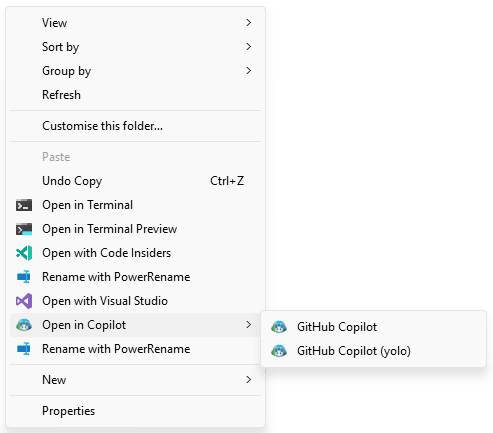
Now I can right-click basically anywhere in Explorer, choose Copilot, pick the flavour of chaos I want, and drop straight into a terminal already pointed at the current folder. This is hidden behind the “Show more options” menu in Windows 11 because otherwise I have to futz with COM or something, and while I wanted this, I didn’t want it that badly.
You can adapt this to have more Terminal profiles if you like, setting up Copilot CLI in different ways, or even just flatten it to a root level without a submenu if you only have one profile. You could even have it launch some other profile that isn’t Copilot-related, but where’s the fun in that?
It’s a tiny bit of automation, but it’s exactly the kind I like: shaving off just enough friction that I stop noticing the setup step and get straight to the work. Or, more realistically, straight to asking Copilot to do the work while I pretend this was all about efficiency and not because I enjoy over-optimising my development environment.
Honestly, the only surprising part is that I didn’t do this sooner.