Back in 2021 I switched to using a split keyboard, the ZSA Moonlander, and I wrote about my experience after the first month.
Fast forward five years, and the Moonlander is still going strong as my daily driver. But I had started noticing something about the way I was using it - my work had become much more browser-heavy and a lot of my time was spent scrolling through markdown, pull requests, and long code outputs. In other words, I was using my mouse far more than I expected to.
That was the real trigger for this experiment. Over the past couple of years I’ve been managing the Awesome Copilot repo, and a large part of that is reviewing and merging pull requests. That means a lot of time scrolling through long markdown files. Add in more agentic coding, where I review output from AI tools or agents, and suddenly the mouse is doing more work than my keyboard ever expected.
Towards the end of 2025, ZSA released a new attachment for their Voyager keyboard, the Navigator. It’s a trackball attachment that snaps onto the side of the keyboard, and you customise it through their firmware tool. The pitch is simple: a trackball is always within reach, without needing to move your whole hand away from the keyboard.
I don’t have a Voyager, and I didn’t have any plans to get one soon. But shortly after they launched it, ZSA wrote about custom 3D-printed shells for the Moonlander, which made the idea much more interesting. After months of procrastinating and trying to work out whether I truly wanted it, I took the plunge and ordered one. It wasn’t cheap; it was close to $200AUD, but it felt like the sort of ergonomic tweak that would either be a revelation or a very expensive experiment.
First Impressions
Out of the box, it’s a very nice product. I bought the full kit, which includes the Voyager adapter in case I ever decide to get a Voyager later on, along with a travel case and the cables needed to connect it to my keyboard. The carry case is not especially useful to me because I work from home and I usually use my laptop keyboard when I travel, but it’s nice to have and I’m sure it’s useful to other people.
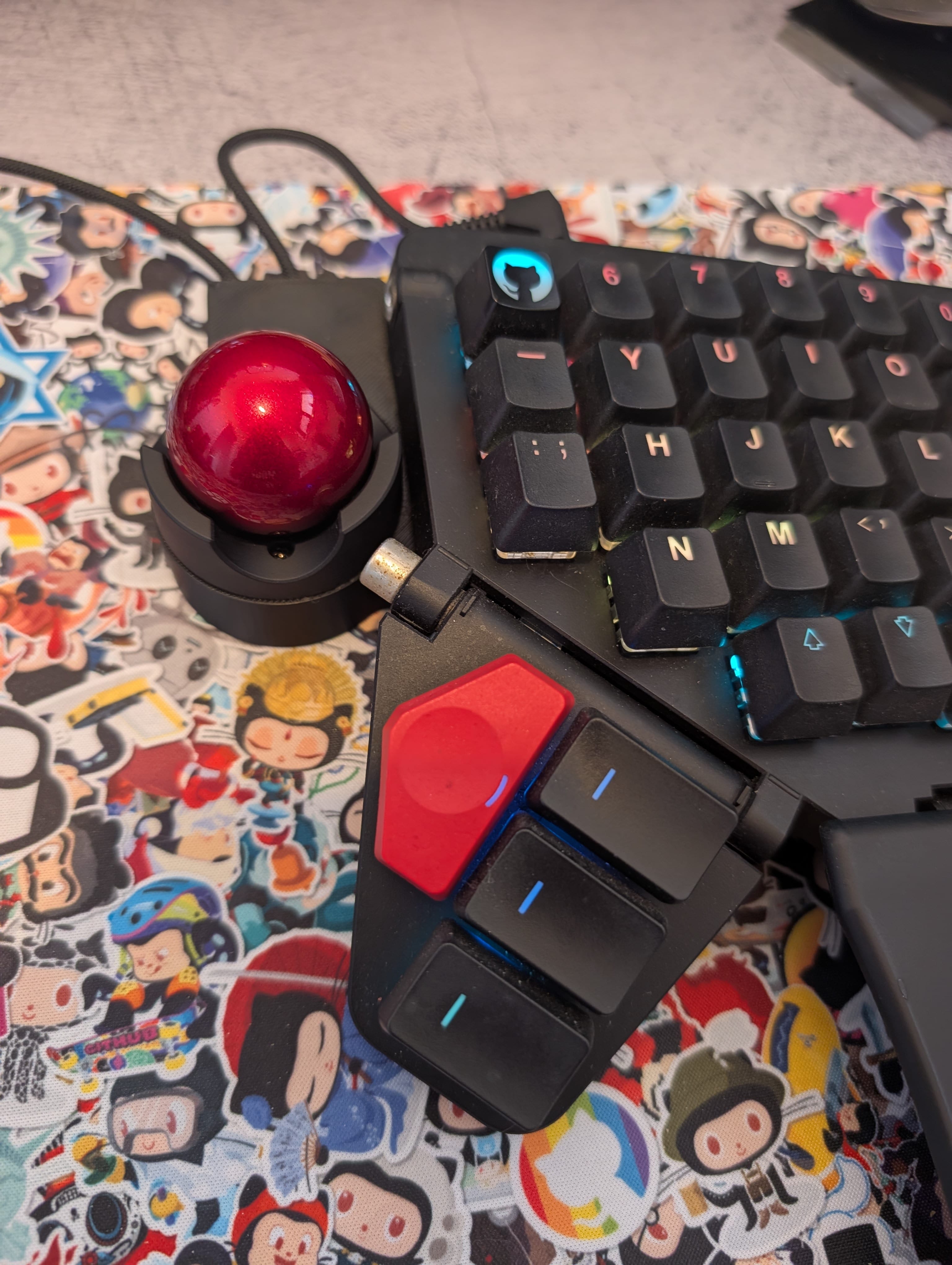
I went with a right-hand attachment for the trackball, offset to the side of the keyboard and aligned with the home row. That felt like the right instinct: it sits just off to the side of where my hand normally rests, so it is easy to reach without making any major changes to my typing posture.
The setup was straightforward. Once it was wired up, I went into the configuration tool, added the trackball as a new device, and started building a dedicated mouse layer. I did find there was a bit of an onboarding gap here, though: I didn’t really know which keys I needed for the mouse buttons, and I couldn’t find any clear documentation. I ended up borrowing someone else’s layer from a Voyager setup to figure out what was expected. It would be nice if the tool prompted for a quick setup when you first add the Navigator.
Usage - Day 1
Once it was all set up, it was time to start using it. This was the initial layer design I went with:
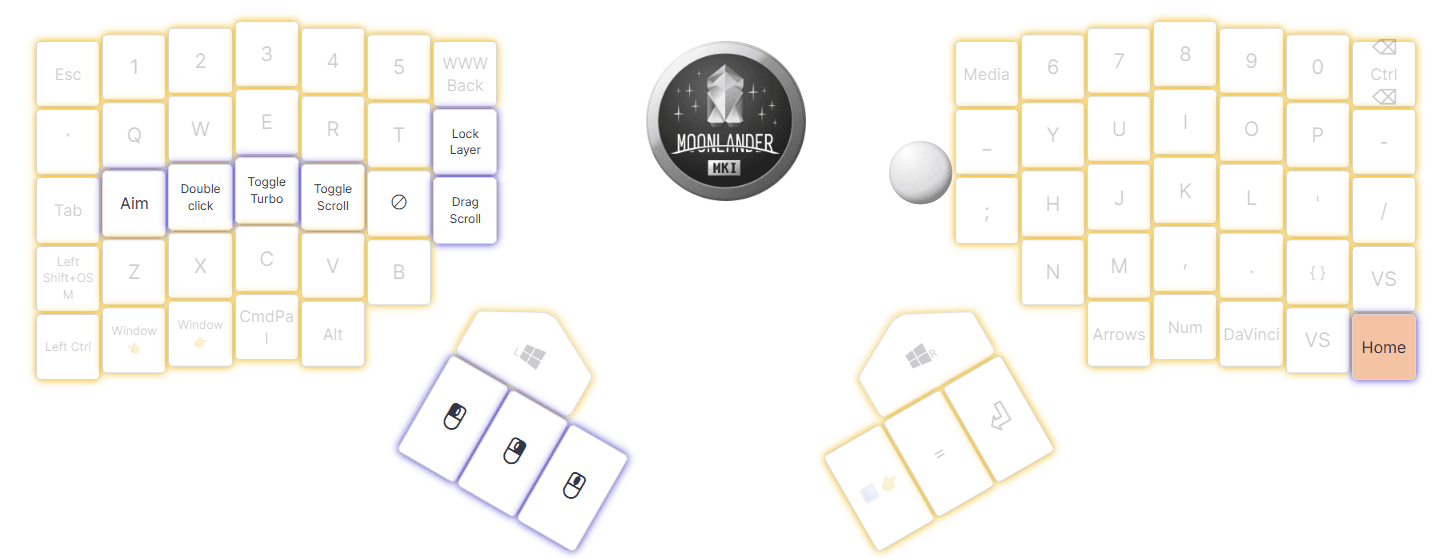
You’ll notice it is left-hand heavy. In fact, I didn’t have any mouse keys on the right side at all; it was all on the left, with the thumb cluster handling the primary mouse buttons.
It didn’t take long before I needed to tweak it. The first thing was the speed of the trackball. The default value of 40 (I’m not entirely sure what it measures, given the scale is 0-125) was far too fast. If I touched the ball, the cursor would whip across the screen, and fine movements were nearly impossible (and this was also finally the catalyst I needed to increase my cursor size - I’d been holding out with the Windows default because damnit I’m not that old… but yeah, it’s getting harder to track). I dialled it down to 20, and while it is now up to 25, that feels much more manageable.
The next change was on the thumb cluster. I use virtual desktops on Windows, and the outermost thumb key is mapped to switching virtual desktops. With my left thumb now mapped to middle click, I found it difficult to switch screens quickly, and I do that a shocking amount.
Over the next day, I started tweaking it further. I’d only make a single change at a time so I could focus on learning one new movement rather than memorising a bunch of things at once. I added a “single-handed” mode with some basic mouse buttons on the right side as well, and I changed “Toggle Scroll” to a hold-to-scroll action instead. That means I have to actively hold a key to enable the trackball’s scroll-wheel behaviour, rather than it being a constant state. I did the same with Turbo, which increases mouse sensitivity, but in practice I don’t really use it.
The bigger challenge was the position of the trackball. It ended up being more of a finger stretch than I expected. It sits about a three-key travel from the J on the home row (yes, I still use QWERTY), which means it is not as close to the “trackpad on a laptop keyboard” feel I had in mind.
Changing the Trackball Position
After a couple of days of it still feeling not quite right, I decided to try an alternative position for the trackball. ZSA provides an STL for a thumb placement, and I decided to print and install it. I reasoned that this would be closer to what I wanted - placement toward the thumb, with the trackball sitting where the thumb cluster would normally be. The only problem is that I use the thumb cluster for keys too heavily to consider removing it.
This placement requires removing the wrist support, and as soon as I did that I realised it wasn’t going to work for me. The trackball felt really good while I was using it, but when I wasn’t using it, it sat underneath my palm and I kept bumping it activating the mouse layer. I guess I use the wrist rests more than I realised. I tried a more hovering posture and relied on the arm supports on my chair, but it just felt unnatural and I could feel the strain in my wrist and forearm.
So that position was clearly not for me, and I moved it back to the original placement.
A Week Later
It’s been a little over a week since I first started using the Navigator, and I’ve settled into a much better flow and positioning. Here’s a short clip of me using the trackball and then typing out this sentence.
What I’ve found is that rather than trying to use the thumb or first finger on the trackball, I am better off slightly pivoting my hand and using my index finger instead. It still requires some whole-hand travel, but it is a manageable amount and the position feels natural, especially compared to the mouse position I used to use, which was between the two keyboard halves.
I also landed on what I think is the ideal layer design for me:
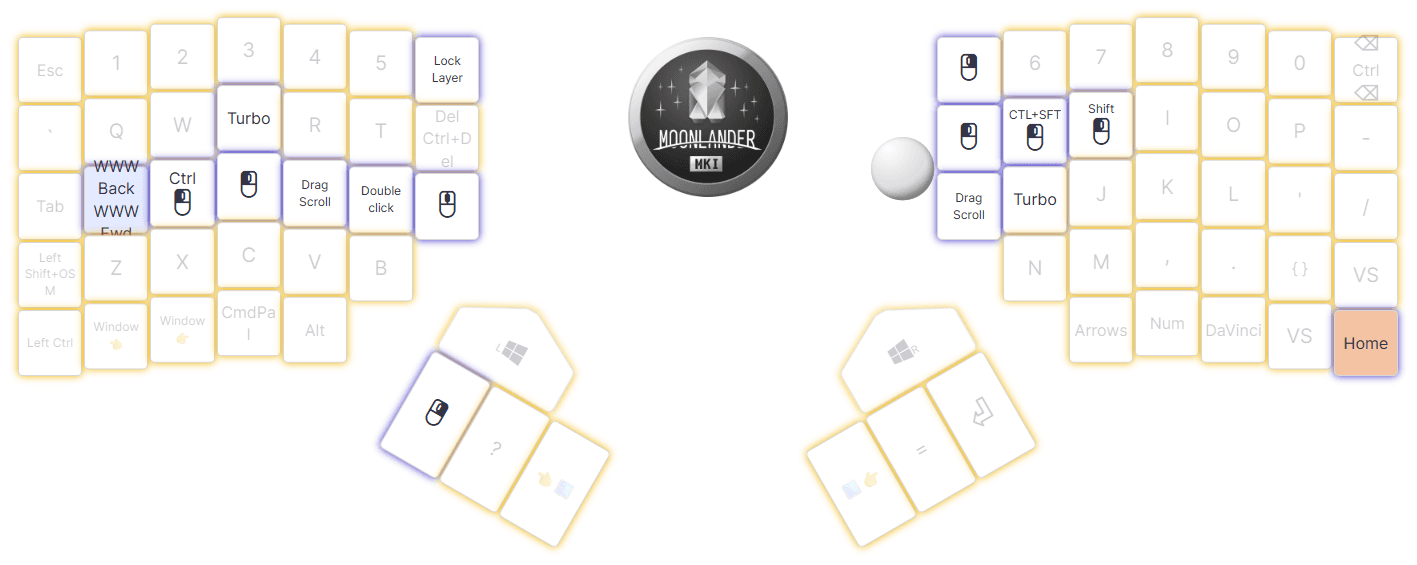
The home row on my left hand is where the primary keys are. My index finger is scroll-hold, my middle finger is left mouse, my ring finger is Ctrl + click, and my pinky is for browser back navigation. My first thumb cluster key is right click (although I think I might move it to under G as I seem to use space more than I thought). I will admit that it looks a bit odd, but it feels natural in practice. Scrolling, left click, and Ctrl + click (which opens a link in a background tab) don’t require any hand movement, and those three actions are something I use a lot in a browser. That’s also why browser back and forward are quick-access actions.
The other reason I set it up this way is that after a few layer iterations I realised just how much the keys around the home row in a QWERTY layout are used for shortcuts. Ctrl + Z, X, C, V, R, and T are all super common in a browser-centric workflow. When I originally mapped them to actions in the mouse layer, I kept getting misfires when I wanted to paste or type something.
Where There is Still Friction
It isn’t perfect, though, and there are still a few things I can’t quite tune to my satisfaction.
The timing of when the mouse layer deactivates is both too slow and too fast at the same time. The way it works is that when the trackball moves, it switches to the mouse layer and stays active while it is still detecting motion, with a small buffer at the end. That means I sometimes find myself right-clicking to add a space because I left-clicked somewhere and wanted to adjust some text. In the video, you can see me go off the trackball, type, then go back to it because I accidentally typed while the mouse layer was still active. If I reduce the cooldown so it deactivates sooner, that would help one scenario, but it would not solve the other: I pause for a moment, then go to left-click, only to start typing d or f to scroll. Yes, I have had a lot of chat messages with stray d and f characters that I had to delete.
The other issue I’ve noticed is that, and this is really a me thing, using the keyboard in my right hand for mouse activities just feels off. I find myself at my desk with a snack in hand, trying to scroll through a PR, but while my hand is happy to control the trackball, combining that with pressing a key to click somewhere or to hold scroll on just doesn’t feel intuitive. My brain is not quite catching up. That doesn’t make sense, because up until recently almost all my mouse activity was done with my right hand exclusively. I’m sure it is just a matter of practice, so I guess that is an excuse to eat more snacks at my desk.
Conclusion
When I first got my Moonlander, it took a month or so before I was really feeling confident with it. Even five years later, multiple layers still do my head in at times. I have two layers for coding, and I only know a handful of the keys on each despite there being a dozen or so special ones mapped. In that sense, the trackball has been easier to adapt to than the keyboard itself.
Yes, I’m still misclicking on occasion, and I can still struggle with pointer accuracy. I keep my real mouse for gaming because I don’t see myself gaining enough accuracy with a trackball to have a truly enjoyable gaming experience. But for the vast majority of my workflow, it is great.
The fact that I can go for an hour or so at a time and not move my left hand from its resting position is a huge win for ergonomics and comfort. It makes long coding or browsing sessions much more pleasant overall.
Also, it is even less likely that other members of the family will use my computer now. They don’t even know how to “click the mouse” 🤣.